You find an old book. Maybe it was your grandfather's. Maybe you picked it up at a dusty thrift store. The pages are yellow, the spine is cracked, and a few corners have crumbled into dust. You want to keep it, but you also know paper doesn't last forever.
That's where I was last year. I had this 1920s field guide to local mushrooms. The cover was barely hanging on. Every time I flipped a page, a little piece of history flaked off. I needed to digitize it, but I also didn't want to just take photos like a tourist. I wanted the text to be searchable. I wanted notes without touching the original. I wanted it to live on a screen without losing its soul.
So I tried Docly. Not because it was fancy, but because it let me do exactly what I needed without forcing me into some rigid workflow.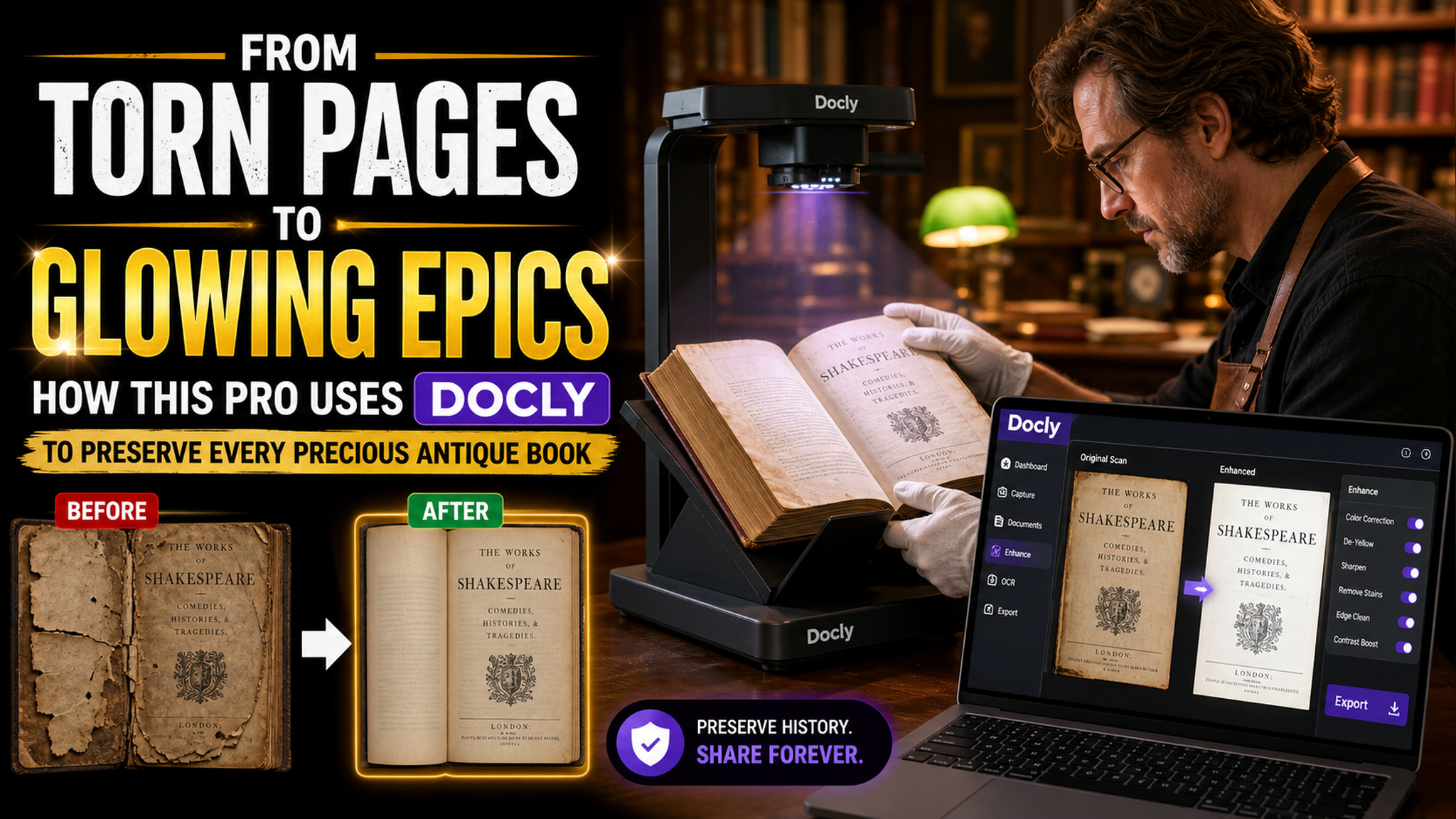
The scan-to-text pipeline that actually works
First problem: old typefaces. This mushroom guide used a font that looks like someone carved it into wood. Most OCR tools just give up and spit out gibberish. I scanned a page, dropped it into Docly, and used its text extraction feature. It didn't get everything perfect — no tool does — but it caught maybe 85% correctly on the first pass. That's way better than my old process of manually retyping the whole thing.
The real win was the editing mode. I could open the extracted text, fix the garbled botanical names, and format it into clean notes. No need to switch between three different apps. I just worked inside the PDF itself.
Making the old look new (but not fake)
I didn't want to lose the character of the original book. Those faded ink stains? Part of the charm. But I also wanted a clean reading copy. Docly's document editing let me do something specific: I could adjust the contrast and brightness of scanned pages without flattening them into sterile white backgrounds. The result was a digital file that still felt warm — like an old book, just better lit.
For one particularly fragile section where the binding had completely failed, I used the PDF editor to stitch together scans of the spread. I manually aligned the pages, trimmed the shadows, and saved it as a continuous document. It sounds tedious, but the interface wasn't fighting me the way other PDF tools do.
The tradeoff: it's not a preservation archive
Let me be clear. Docly is not a full-on digital preservation system. If you need standards-compliant archival masters with embedded metadata and checksums, you need specialized software. Docly doesn't do that. What it does is fill the gap between "I scanned this" and "I can actually use this."
For someone like me — a curious person, not a librarian — that gap is where the real work happens. I don't need ISO standards. I need text I can copy-paste into my notes app. I need a PDF that renders correctly on my phone. I need to not spend an hour wrestling with file formats.
The limitations are real though. Old cursive handwriting? Docly will struggle. Heavily stained pages with text bleeding through? You'll have to manually clean those up. The AI summary feature is fine for modern reports, but for antique books with flowery 19th-century prose, the summaries tend to miss the nuance. I use them as rough outlines, not final notes.
Should you use it for your collection?
If you have a handful of precious books and you want them to be readable, searchable, and shareable without destroying the originals, Docly is a solid choice. It's not the cheapest PDF tool out there, but the AI text extraction and clean editing interface save enough time that it pays for itself after a few books.
If you're trying to digitize a whole library of fragile materials, you'll want a different workflow. But for the one or two books that genuinely break your heart every time you see them fall apart? Give it a shot. Your mushroom guide deserves to glow on a screen too.
Comments
Leave a Comment