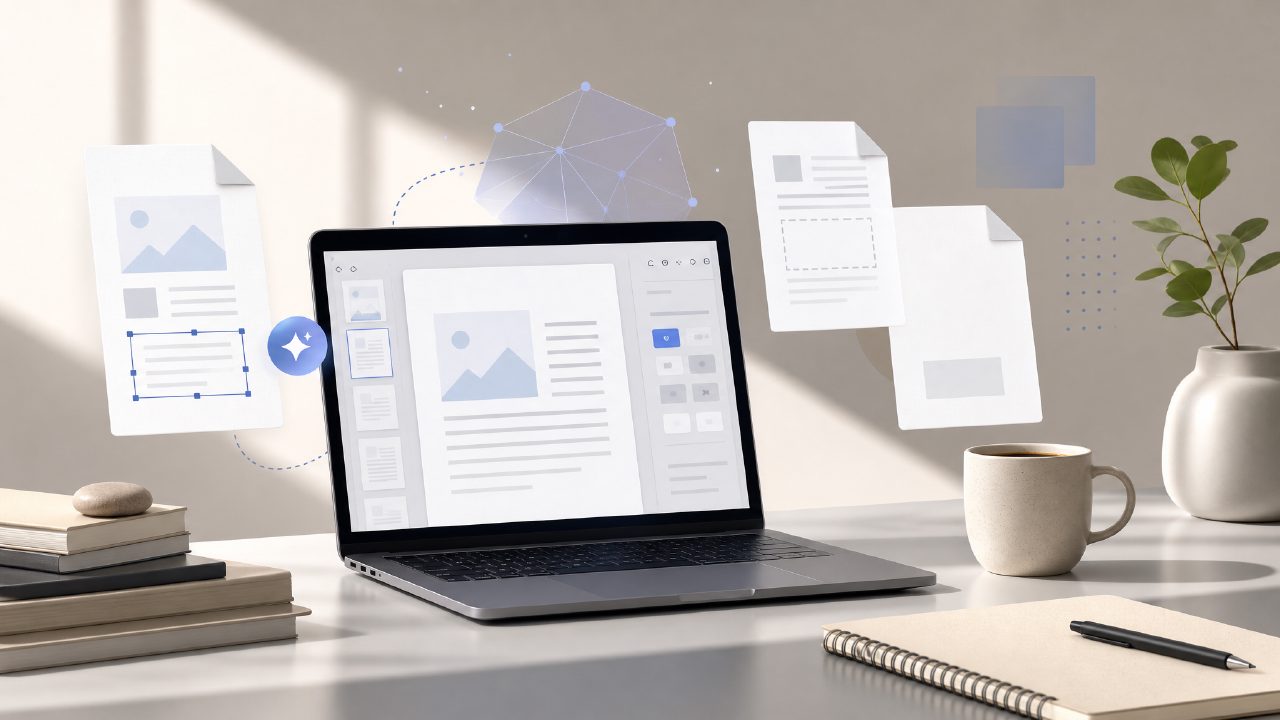
I’ve been working remotely for about four years now, and my PDF habits have changed more than I expected. When I was in an office, I’d print things, scribble on them, and file them. Now everything lives in a cloud folder, and I rarely open a PDF just to read it — I need to extract the core points, edit a few lines, or pull data out of a scanned contract. That’s what got me testing Docly, an AI PDF editor that promises summaries, text extraction, and editing in one place. I wanted to see if it actually saves time for someone who deals with PDFs daily, or if it’s just another tool that looks good in a demo.
Why I looked at another PDF tool
I already use Adobe Acrobat for heavy editing and a basic online tool for quick merges. But neither handles the “read this 40‑page report and tell me what’s important” part well. That’s the gap I hoped Docly would fill. A lot of remote work tools claim to cut time on document processing, but most just add another login and a new UI to learn. I was skeptical, but I gave it a real try over a week of normal work.
Concrete observations from using Docly
1. Summaries that actually skip the filler
I dropped a 30‑page vendor agreement into Docly and asked for a summary. The first result was decent — it picked up the key deadlines and liability clauses. But it also kept a few paragraphs that were basically boilerplate legalese. I adjusted the “detail level” slider (a simple 1–10 scale) and reran it. At level 5, it gave me a clean 3‑paragraph takeaway that I could forward to my manager without editing. That felt faster than reading the whole thing, but it wasn’t perfect: the first run missed a minor renewal clause I had to catch manually. So the AI is good, not magical.
2. Text extraction that works with messy scans
A colleague sent me a scanned PDF of a hand‑signed contract — the kind where the text is slightly slanted and the contrast is poor. Docly’s OCR handled it surprisingly well. It pulled the names, dates, and amounts with only one character error (a “3” that became “8” in a price field). I wouldn’t rely on it for a legal document without double‑checking, but for everyday extraction tasks like grabbing an address from a scanned invoice, it saved me from typing manually. That’s a solid win for a free‑tier tool.
3. Editing is straightforward but limited
I edited a PDF to remove an outdated graphic and replace a few lines of text. The editor works more like a word processor than a layout tool — you click on text blocks and type over them. That’s fine for simple fixes, but I tried to rearrange paragraphs and the formatting got messy. Headers shifted, and one bullet list turned into a single paragraph. For heavy reformatting, I still prefer a desktop editor. For quick tweaks and comments, Docly is fast enough.
A realistic tradeoff: speed vs. precision
Docly’s biggest strength is speed. Summarizing a 15‑page whitepaper took about 20 seconds on my average connection. Extracting text from a three‑page scan was nearly instant. That makes it one of the better remote work tools for the “I need an answer in five minutes” scenario. But speed comes with occasional inaccuracies — the missed renewal clause, the OCR error. If your work demands 100% accuracy (medical forms, official filings), you still need to verify manually. That’s not a dealbreaker; it’s a tradeoff that most AI tools share.
Where I felt some friction
The biggest frustration was the export options. Docly lets you download summaries as text, but if you want the summary inside the original PDF as a separate page, you have to copy‑paste manually. I also noticed that the mobile web version felt sluggish compared to the desktop browser experience. Since a lot of my remote work happens on a tablet during commutes, that mild friction is worth noting. I ended up using docly mostly from my laptop.
Is it one of the best free AI PDF editors for 2026?
I can’t speak for 2026 yet, but right now, among free AI PDF editors, Docly holds its own. The free tier gives you a limited number of summary requests per day (I hit the cap around request 8), but it’s enough for light daily use. For the price of zero, it does more than most free tools. I wouldn’t call it the absolute best across every scenario — heavy editing and strict formatting are not its strengths. But for the specific use case of reading, extracting, and lightly editing PDFs as a remote worker, it’s worth keeping in the toolbox.
If you’re still relying on copy‑pasting from PDFs into ChatGPT for summaries, Docly gives you a more direct workflow. That alone can shave 10–15 minutes off your day. Just remember to double‑check the output on anything critical, and you’ll be fine.
Comments
Leave a Comment