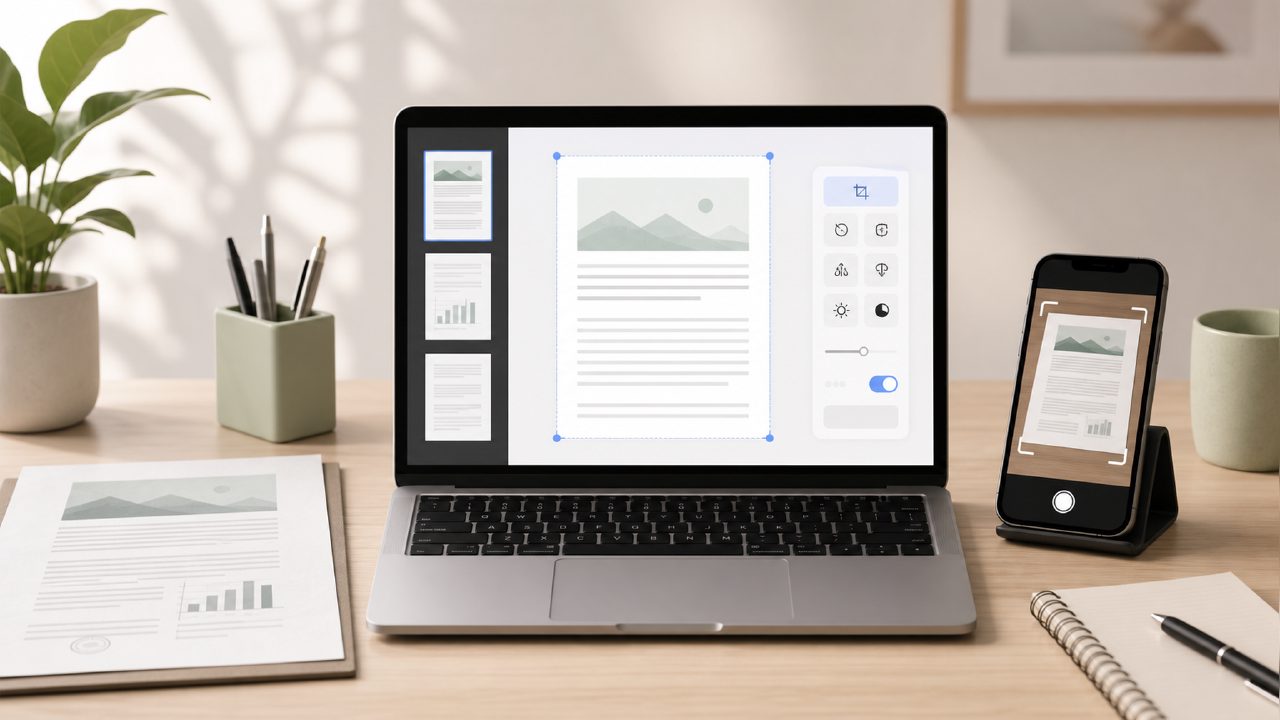
I've been sitting on a pile of PDFs for weeks—research papers, scanned contracts, a couple of travel receipts that I needed to turn into editable notes. The usual free tools either watermark everything or cap page counts so low you're stuck. That's what pushed me to try an ai pdf scanner and editor free option, specifically docly, to see if it could actually do the work without asking for a credit card.
First impressions: scanning and summarising
The scanning part worked faster than I expected. I pointed my phone at a printed contract with some handwritten margin notes, and Docly picked up most of the text. It didn't nail the handwriting—there was one "approval" that came through as "approwal"—but for typed text on a decent scan, the OCR was solid. The summarisation feature is what I was most curious about, since the product tagline promises turning long documents into useful notes. I fed it a 4-page research paper, and it gave me a three-sentence summary. The bullet points were clear, but they left out the methodology section entirely. Useful for a quick read, less useful if you need the details.
So far, this docly ai pdf editor handles one-page documents really well. Short emails, single-page invoices, a one-page terms update—those summaries were tight and accurate. The trouble came when I threw in a 15-page report. The free tier capped the summary length, and what I got back was so generic I had to re-read the original anyway. That's a realistic tradeoff: the ai pdf editor free version is great for lightweight work but not for deep reading.
Editing and text extraction
The text extraction tool is probably the most straightforward part of the app. I tested it by grabbing a few paragraphs from a scanned PDF of a magazine article. The extracted text came out clean, no weird line breaks or missing punctuation. One thing I noticed: it struggles with multi-column layouts. The tool tried to merge columns together, so the output read like a run-on sentence. You have to reformat manually if your document isn't single-column.
The editing function is where I felt the friction. Docly lets you make small changes to a PDF—typos, tweaking a figure, deleting a line. It works, but the interface on the free version is a little cluttered on mobile. I ended up doing most edits on desktop because the buttons are too small on a phone screen. Also, the AI rewrite option (where it tries to rephrase a sentence for clarity) gave mixed results. It made one sentence more concise but also introduced a subject-verb error that I had to catch. You can't fully rely on it.
Where it fits (and where it doesn't)
I can see this being genuinely useful for someone who needs to scan a few receipts, extract a quote from a contract, or get a quick gist of a newsletter. For students scanning textbook chapters, the free ai pdf summarizer 2026 style of document processing is a decent time-saver—as long as you're okay with approximate results. I used it to pull key dates from a venue rental agreement, and it caught three out of five deadlines correctly. It missed a couple because they were inside a table cell, and the table parsing is still weak.
The major limitation is the free plan's page count. You get a certain number of pages per day, which is fine for light use, but if you're trying to process a whole semester of readings, you'll hit the wall fast. There's no way around it except upgrading or waiting until the next day. That's a legitimate downside if you're on a deadline.
Should you use Docly?
If you just need a quick and free way to scan a document, extract some text, and get a rough summary, this is a practical option. The ai pdf scanner and editor free tag is accurate—it does offer scanning and editing for zero upfront cost. But the AI features aren't magic. The summarisation loses nuance, the editing can be clunky on small screens, and the handwriting recognition is mediocre. I'd recommend it for everyday lightweight PDF tasks, not for mission-critical documents where every detail matters. Try it on a few small files first, and see if the limits bother you before relying on it for anything important.
Comments
Leave a Comment