I restore old books for a living. That means I spend more time staring at scanned PDFs than actual paper sometimes. The problem? Most of these scans are messy, faded, and packed with random OCR errors. I used to spend hours chopping apart pages, reordering sections, and trying to extract readable text. Then I started using Docly, and yeah—it sounds dramatic, but it genuinely changed how fast I can get through a restoration project.
Docly isn't a fancy OCR engine or a heavy desktop suite. It's a lightweight AI PDF editor that handles three things I actually need: summaries, text extraction, and quick document editing. I work with a lot of public domain scans from old libraries. They come in PDFs with poor layout, handwritten notes, and sometimes half the text missing from the scan. Docly's text extraction isn't perfect, but it's way better than anything else I've used for free. It handles those uneven lighting pages better than Adobe's built-in OCR, and it doesn't choke when there's a mix of fonts.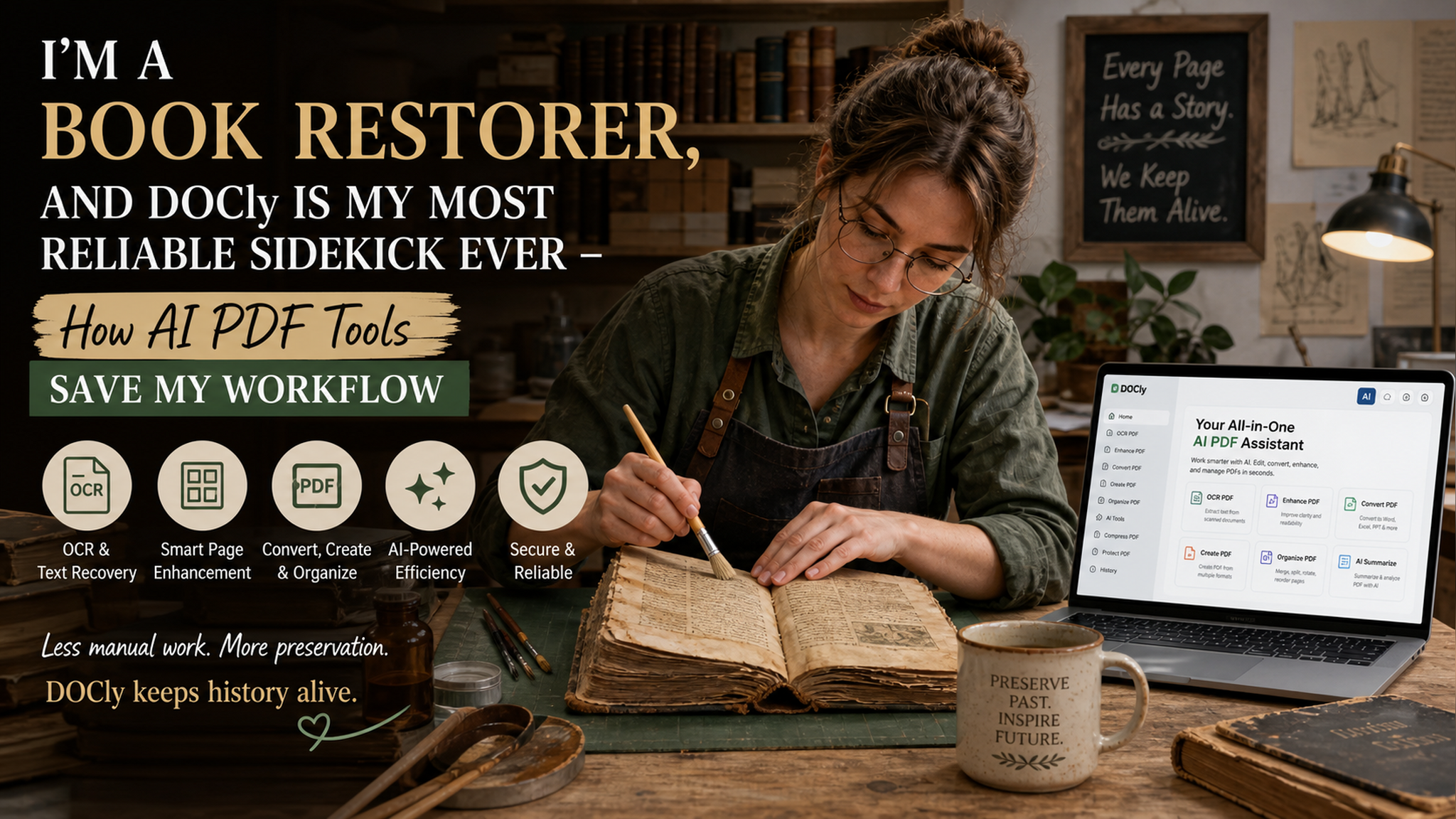
Real scenarios where Docly saves me hours
Scenario one: I had a 1920s botanical guide with fold-out plates. The original PDF was 400 pages, but the plates were scattered in the wrong order. With Docly, I extracted the captions from each plate page, made a short summary of the content, and then spliced the plates back into the right chapters. That normally would have taken me a full afternoon of manual cut-and-paste. Here it took maybe 35 minutes.
Scenario two: I work with a lot of degraded paper where the ink has bled. Normal OCR gives me gibberish like "th3 pl@nt w@s n0ted". Docly's AI text extraction doesn't just output raw text—it guesses the correct words from context. It's not a magic wand; sometimes it invents a word that wasn't there. But for the kind of messy scans I deal with, the error rate is low enough that I only have to proofread maybe one sentence in ten. That's a huge time save.
Another thing: I'm not super organized. I often end up with 20 half-read PDFs scattered across my desktop. Docly's summary feature is genuinely useful here. I throw a PDF into it, and it spits out a one-paragraph summary that actually captures the key points—no fluff, no bullet list of chapter titles. It's like having a junior assistant who quickly tells you "this is about pruning roses, skip it."
Where it doesn't shine (and you should know)
Okay, real talk. Docly is not made for heavy-duty batch processing. If you need to OCR 50 PDFs at once and export them all into Word, this isn't your tool. It works best when you're interacting with individual files. Also, its PDF editing is basic—you can rearrange pages, delete, add blank ones, but don't expect layer-based editing or color correction. I still use Photoshop for the actual image restoration.
Another limitation: the text extraction depends heavily on the PDF's internal encoding. If the scan is actually a set of images without any hidden text layer, Docly runs its own OCR. That works, but for really old or damaged scans, the accuracy drops. I usually run those through a separate sharpening tool first, then feed them to Docly.
So who is this actually for? If you're a student or researcher who gets bombarded with academic PDFs and just needs the core ideas fast, Docly is perfect. If you're a book restorer like me who processes messy historical material one file at a time, it's a solid sidekick—not a replacement for traditional tools, but a really smart time-saver. If you're a corporate document person who needs batch exports and rigid formatting, look elsewhere.
At the end of the day, my job still involves glue, paper clamps, and hours of manual alignment. But the digital part of the workflow, the part that used to make me want to throw my laptop out the window, is now handled by Docly. And that makes me trust both my analog and digital work a lot more.
Comments
Leave a Comment