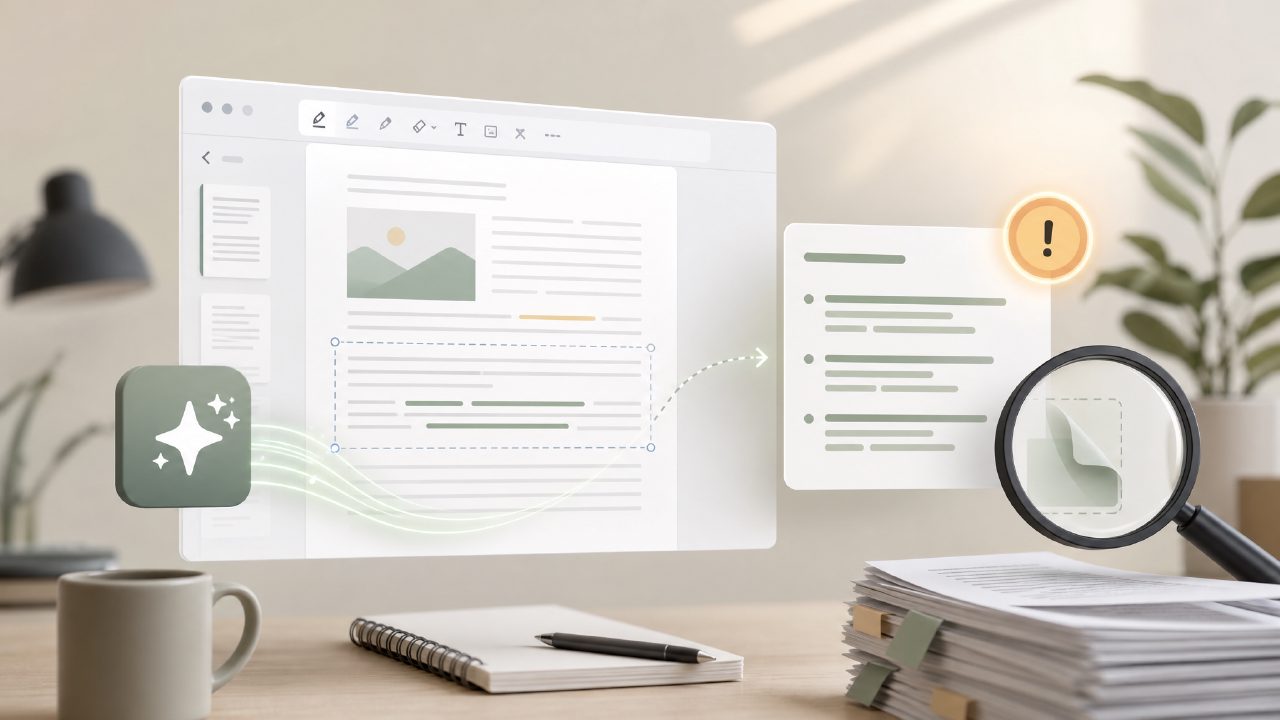
I spent the better part of a week testing the docly ai pdf editor specifically to find where it trips people up. You see, I’ve been burned before by AI tools that promise to summarize a 50-page report and instead hand back three bullet points that miss the main argument. So I went in skeptical, and honestly, I found that docly does a lot right—but there are some real gotchas that aren’t obvious from the landing page.
The summary feature works faster than expected, until it doesn’t
The first thing I tried was feeding a dense legal brief into docly—about 30 pages of case law and contract clauses. The AI-generated summary came back in under ten seconds, which is legitimately impressive. But here’s the first gotcha: it tends to flatten nuance. In that legal document, the AI missed a key exception buried in the middle of a paragraph. It summarized the rule correctly but dropped the “unless” clause. If you use docly for anything where details matter—contracts, academic papers, medical guidelines—you need to spot-check the summary against the original. It’s a fast first pass, not a final product.
Another quirk: the summary length is adjustable, but the shorter options sometimes produce sentences that don’t quite parse. I got a line like “The court ruled against the motion because the evidence, which was not presented timely.” That trailing comma feels like the AI stopped mid-thought. So if you’re using the “brief” summary mode, be prepared to edit the output.
The free tier is generous—but has a weird restriction
I mostly tested the free version because “best free ai pdf editor 2026” was on my mind. Docly gives you a decent number of daily actions without paying. However, the free tier limits you to a maximum file size that isn’t clearly advertised. I tried to upload a 25 MB scanned manual, and it silently failed—no error message, just the upload button stayed greyed out. Took me a minute to figure out that the limit is around 15 MB for free accounts. If you often work with large scanned PDFs, this could be annoying. The paid tier bumps that limit significantly, but the documentation doesn’t make it obvious.
And speaking of scanning: docly’s OCR handled a clean scan of a typed letter without issues. But when I threw a slightly crooked photo of a printed table at it, the text extraction became jumbled. Numbers ended up in the wrong rows, and column headers got merged. If your scans aren’t almost perfectly flat and well-lit, you’ll need to clean up the extracted text manually.
Text extraction: great for simple docs, less great for layouts
I tried using docly to pull text from a two-column PDF newsletter. The extraction kept the reading order left-column-first, which is correct for most cases, but it completely ignored a sidebar pull quote that was in a different font size. The pulled quote just vanished from the extracted text. That’s a real loss if you’re trying to capture all the key points or quoting sources. I’ve seen similar behavior in other AI PDF tools, but it’s still a gotcha—don’t assume everything is extracted, especially from complex layouts.
On the plus side, the extraction handled footnotes and endnotes reasonably well in a single-column academic paper. It preserved the superscript numbers and kept the note text at the end. That’s better than some free options. But again, for multi-column or heavily formatted documents, you’ll want to compare the output to the original.
Editing: more of a text editor than a layout editor
Docly lets you edit PDF text directly, but it’s not like Adobe Acrobat where you can drag elements around. It treats the document more like a canvas with text blocks—you can change the words, but the paragraph reflow sometimes shifts the page layout unpredictably. I tried to insert a single sentence in the middle of a paragraph, and it pushed the rest of the paragraph off the page. I had to manually adjust the text box afterward. That’s manageable for small tweaks, but if you’re planning to heavily rewrite a PDF, you might be better off converting it to a Word doc first and then re-exporting.
Another editing gotcha: font matching is approximate. When I changed text, docly used a similar-looking sans-serif font, but the spacing was slightly wider, so the edited words stood out if you printed the page. For internal notes that’s fine, but for a client-facing document it would look sloppy.
When docly shines and when to skip it
After all that testing, here’s my honest take: the docly ai pdf editor is excellent if you need fast summaries of straightforward, single-column documents and do basic text extraction. It’s one of the better free ai pdf editors 2026 has to offer in that niche. But it’s not a replacement for dedicated OCR software or a full DTP tool. The gotchas I hit—flawed nuance in summaries, silent file-size limits on free accounts, garbage-in-garbage-out on crooked scans, and clumsy text reflow during editing—are real friction points. If your workflow involves complex layouts, large files, or critical legal/medical documents, plan to double-check everything docly produces. Use it as a time-saver, not a crutch.
Comments
Leave a Comment