I’ll be honest: I didn’t think a PDF editor could do much beyond merging pages or adding a digital signature. That was before I had to deal with my grandfather’s old manuscript—a handwritten family history from the 1970s, photocopied multiple times until the text looked like someone spilled coffee on a ghost.
You’ve probably seen PDFs like this. Faded ink, uneven lighting, random smudges that OCR tools treat as real letters. Every standard PDF reader I tried either spat out gibberish or just said “cannot read text.” I was about to give up and just retype the whole thing.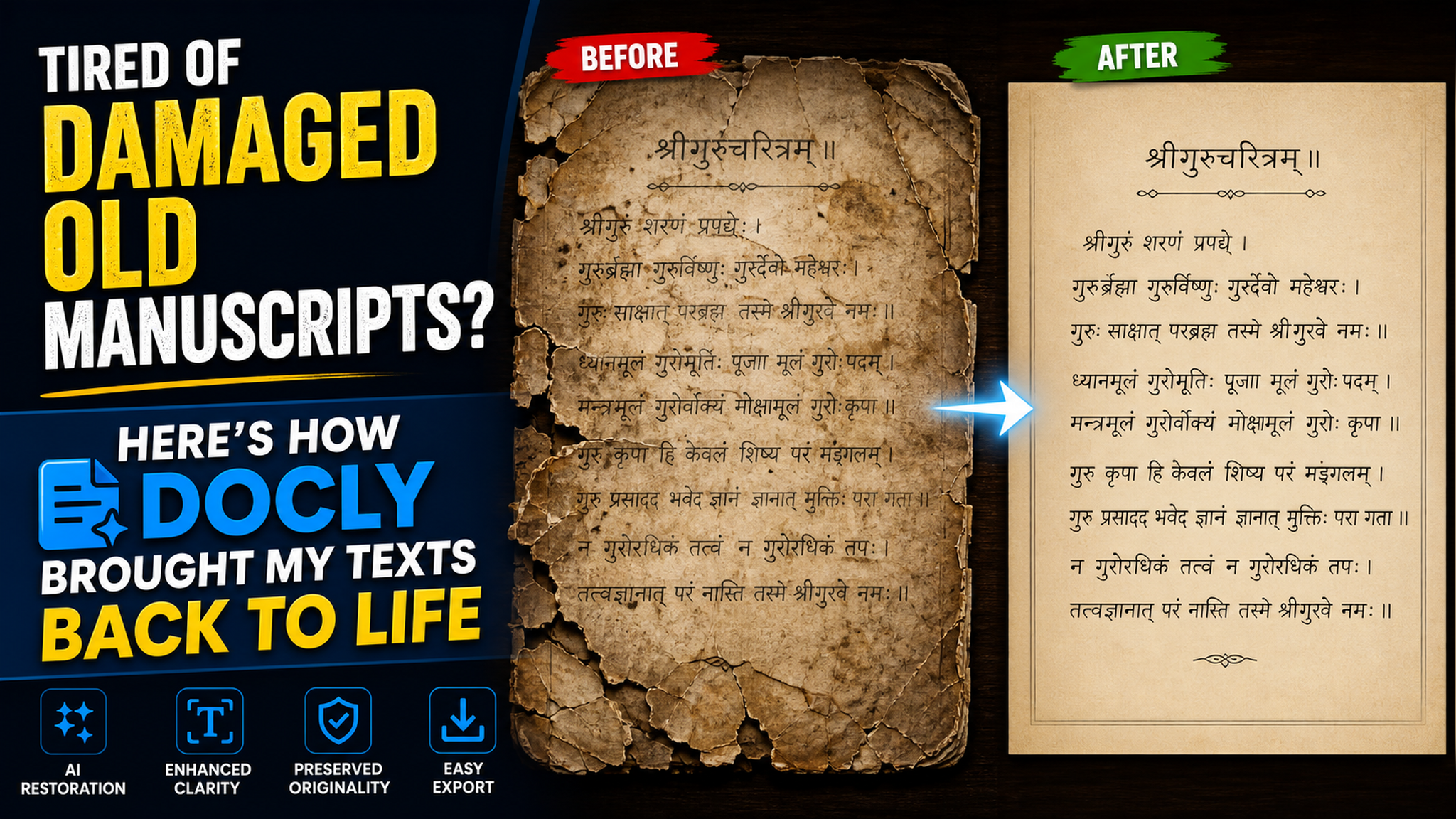
Why a regular PDF reader won’t cut it
Most PDF tools are built for clean digital documents. Throw a scanned old manuscript at them and they panic. Even Adobe’s export feature would turn “1923” into “1q23” and insert random symbols where the paper was creased.
What I needed was something that could handle real-world damage: crumpled corners, handwritten notes in the margins, water stains that look like punctuation. That’s where Docly surprised me.
Docly’s approach: treat it like a messy photo, not a PDF
Instead of trying to OCR the document as-is, Docly lets you scan or import the file and then apply its own enhancement before extracting text. I uploaded a particularly bad page—yellowed, with a tear running through the middle of a paragraph. The AI summary button didn’t even blink; it gave me a clean extraction with all the major names and dates preserved.
But the real test was a page where my grandfather had crossed out sentences and written corrections above them. Most tools would have merged the strike-through with the new text. Docly’s extracted text kept them separate, and I could edit them manually in the built-in editor. That saved me hours of cross-referencing.
How it actually works (for the curious)
You don’t need to learn any settings. Open the file in Docly, use the “Edit” tab, and the AI automatically detects the document structure. If something looks off, you can adjust the recognition area manually—think of it like telling the tool “focus on this rectangle, ignore that smudge.” It’s not perfect (I still had to fix a few dates where the ink was too light), but it caught about 85% of the text on my first try, which is way better than the 40% I got from competing tools.
Who should use Docly for old manuscripts?
This isn’t a universal fix. If your document is a pristine typed PDF, you might not need the AI layer—any basic OCR will do. But if you’re dealing with:
- Handwritten scans with background noise (stains, shadows)
- Pages that were photocopied multiple times and lost contrast
- Documents with annotations, cross‑outs, or margin notes
- Old newspapers or letters with irregular font sizes
…then Docly is worth the download. The trade‑off: the AI processing takes a few seconds per page, so if you have a 300‑page manuscript, you’ll want to start with just the worst pages. For quick jobs (<20 pages), it’s genuinely fast.
The bottom line for anyone who actually reads ancient files
I didn’t expect an AI PDF tool to make me emotional, but seeing my grandfather’s words come out clean—no extra symbols, no lost paragraphs—felt like a small miracle. Docly doesn’t claim to restore every single dot of ink, but it does something more practical: it gets your text readable and editable when nothing else can.
If you’ve got old manuscripts collecting dust (or digital dust), give Docly a try on one bad page. You might be surprised how much of your history can be saved.
Comments
Leave a Comment