You need to convert a scanned invoice to Excel, or pull text from a PDF that won't let you copy-paste. Most free converters either fail on image-based PDFs or lock features behind paywalls after the first file.
Docly handles both standard PDF conversion and OCR recognition in the same tool. You upload a file, pick your output format, and it processes without requiring an account for basic use. The OCR works on scanned documents, photos of receipts, and image-heavy PDFs where text isn't selectable.
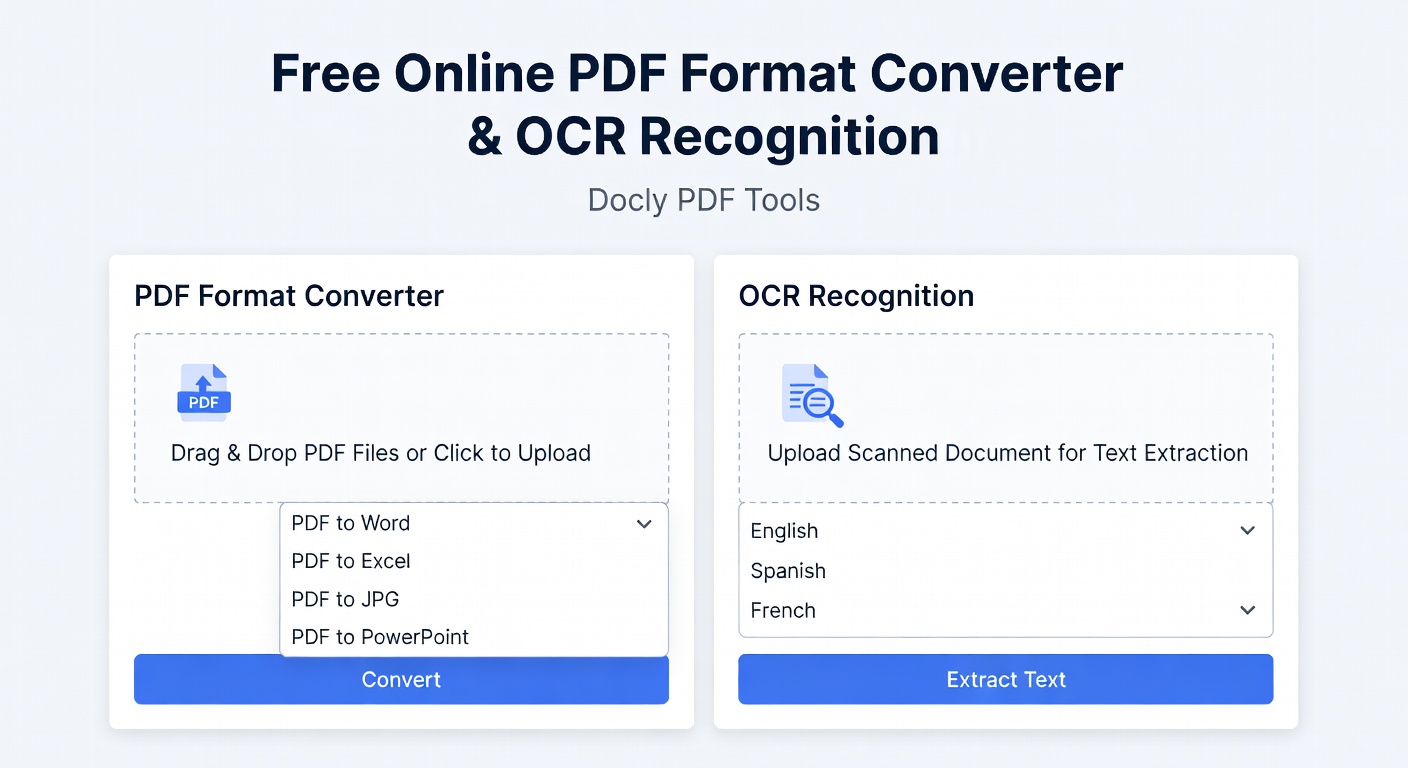
What Actually Works
The format converter supports the usual suspects: PDF to Word, Excel, PowerPoint, and image formats. It also goes the other direction—Word to PDF, JPG to PDF. For OCR, it recognizes text in multiple languages and outputs editable formats, not just searchable PDFs.
I tested it on a scanned contract and a photo of a printed article. The contract came out clean in Word with minimal formatting issues. The photo required better lighting to get accurate results, which is typical for any OCR tool. If your source image is blurry or low-contrast, you'll get garbled text regardless of the tool.
Speed and File Limits
Processing happens server-side, so upload speed depends on your connection. A 5MB scanned PDF took about 15 seconds to OCR and convert to Word. Larger files or batch jobs will take longer. There's a file size cap on the free tier, though it's generous enough for most single-document needs.
The interface doesn't show a progress bar during OCR, which makes you wonder if it's stuck or still working. A small frustration, but the results usually arrive within a minute.
When It Makes Sense
Docly works well if you occasionally need to convert or OCR a PDF without installing software. It's faster than opening a desktop app for one-off tasks. The AI summarization feature is useful for long reports, though it's a separate function from the converter.
If you're processing dozens of files daily, you'll hit limits or want more control over OCR settings. Desktop tools like ABBYY FineReader or Adobe Acrobat give you adjustment options for complex layouts. For casual use—pulling text from a few scans, converting meeting notes to PDF—Docly handles it without friction.
The tool doesn't save your files on their servers long-term, which matters if you're working with sensitive documents. Still, if you're dealing with confidential material, a local solution is safer than any online converter.
Practical Tradeoffs
Free access covers most basic tasks, but heavy users will need a paid plan for higher limits and batch processing. The OCR accuracy is solid for clean scans but struggles with handwriting or heavily stylized fonts, same as most OCR engines.
You can't fine-tune recognition settings like you can in dedicated OCR software. If the first pass doesn't capture everything correctly, your options are limited to re-uploading a better quality source file.
For quick PDF conversions and occasional OCR jobs, Docly removes the hassle of downloading trial software or dealing with ad-heavy free sites. It won't replace professional tools for high-volume or precision work, but it covers the gap between needing something now and committing to a full software purchase.
Comments
Leave a Comment