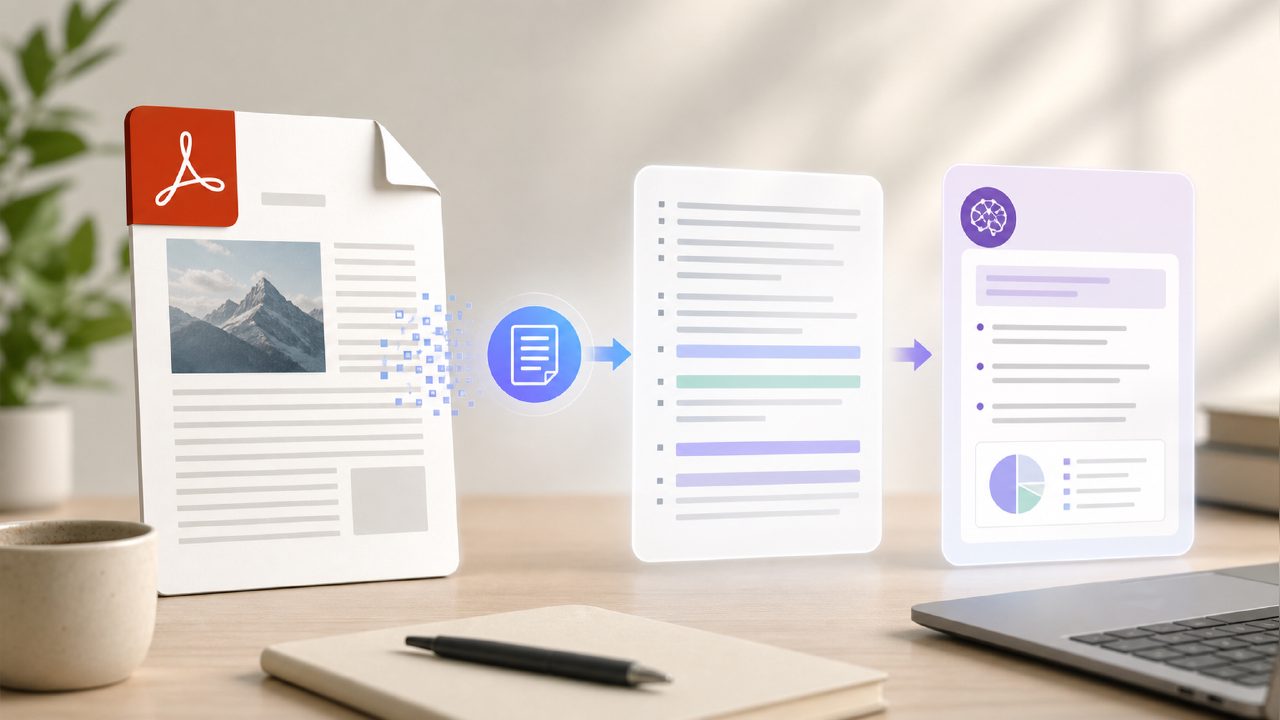
I needed to pull quotes from a 50-page research report last week, and I found myself asking the same question I always ask: is Adobe Acrobat still the best option, or has something else caught up? I’ve used Acrobat on and off for years, but lately I’ve been testing a few alternatives—including docly, an AI PDF editor that promises faster summaries and text extraction. Here’s what I actually found while working with Adobe Acrobat in real tasks.
Adobe Acrobat text extraction: powerful but not instant
The first thing I noticed was how well Acrobat handles complex layouts. I threw a scanned contract with tables and footnotes at it, and the text extraction kept the structure mostly intact. That’s impressive—most free tools would botch the table alignment. But it wasn’t fast. A 40-page scan took maybe 20 seconds to process, and during that time the interface felt a little sluggish. For comparison, I tried the same file with an AI tool like docly, and the extraction completed in under 10 seconds. The quality was slightly lower—some merged cells—but for quick notes, it was good enough.
One thing that bothered me: Acrobat’s OCR on poorly scanned documents. I had a receipt image where the text was slightly skewed, and Acrobat missed three out of ten lines. I had to re-scan at a higher resolution. That’s not a dealbreaker, but it’s inconsistent.
AI summaries: a mixed bag in Acrobat
Adobe has been adding AI features, but the summary tool still feels experimental. I fed it a 15-page report on supply chain disruptions. The summary it gave was accurate but overly generic—“the report discusses challenges in logistics and recommends better inventory management.” That’s not very useful if you’re trying to extract specific data points. I’ve found that docly, which is built around AI from the ground up, tends to produce shorter, more actionable summaries. But docly’s summaries also sometimes skip context that Acrobat retains. So neither is perfect.
I’d say if you need deep comprehension, Acrobat’s summary is okay for a first pass, but don’t rely on it for final notes.
Editing interface: familiar but showing its age
Adobe Acrobat’s editing tools are what most people know: you can add text, delete paragraphs, and rearrange pages. It works, but the interface feels cluttered. I spent about five minutes trying to figure out why my text box kept snapping to the wrong alignment. Turned out there was a hidden grid setting I hadn’t disabled. That’s friction. For simple edits like correcting a typo, I prefer lighter tools that open faster and don’t require hunting through menus. Docly has a cleaner editing view with fewer options, which could be a tradeoff if you need advanced formatting.
The price catch and where alternatives fit
Let’s be honest: Adobe Acrobat Pro is expensive. The monthly subscription adds up if you only need PDF tools every few weeks. That’s why I started looking at free or cheaper AI PDF editors in the first place. Docly offers a decent free tier for summaries and text extraction, and it handles scanned files well. But Acrobat wins on reliability with complex documents and when you need professional output. I wouldn’t use docly for a legal contract I’m submitting to a client—I’d use Acrobat because I trust its formatting more.
If your work involves frequent, high-stakes PDF edits, Acrobat is still the safe bet. For quick, everyday tasks—turning a long report into notes or extracting a few paragraphs—a tool like docly can save you time and money. Just don’t expect the same polish in edge cases.
Comments
Leave a Comment