If you’ve ever tried to highlight a passage in a scanned PDF of an old book, you know exactly where this is going. The text looks good, but you can’t select a single word. Maybe the page is slightly crooked, or the type is faded from decades of shelf wear. You want to save a quote, search for a character name, or even convert the whole thing into a clean e-book file. That’s the point where most readers give up and just take screenshots. It’s not a good experience.
Docly approaches this from a different angle. It’s not just another OCR wrapper that spits out messy text. It uses AI to recognize the structure of a scanned page, then restores the text into an editable, searchable PDF while preserving the original layout. For book lovers dealing with old library scans or out-of-print titles, that’s a real time-saver.
Scanning those worn-out library copies
I have a scanned copy of a 1970s sci-fi novel. The pages are yellowed, the font is small, and the gutter shadows make some words almost unreadable. I tested Docly on three pages. It read the headers, the footnotes, and even the unevenly spaced chapter titles correctly. The output wasn’t perfect — a few hyphenated line breaks merged words together — but the core text was selectable and searchable. For a reader who wants to Ctrl+F for a character’s name, that’s the difference between a useful file and a digital paperweight.
Another scenario: I have a multi-volume history series in PDF, each 400 pages. The original scans have no OCR layer. Docly handled the first volume in about two minutes. The result allowed me to copy a paragraph directly into my notes without retyping. That’s where the “fun” part becomes real — you stop fighting the file and start reading.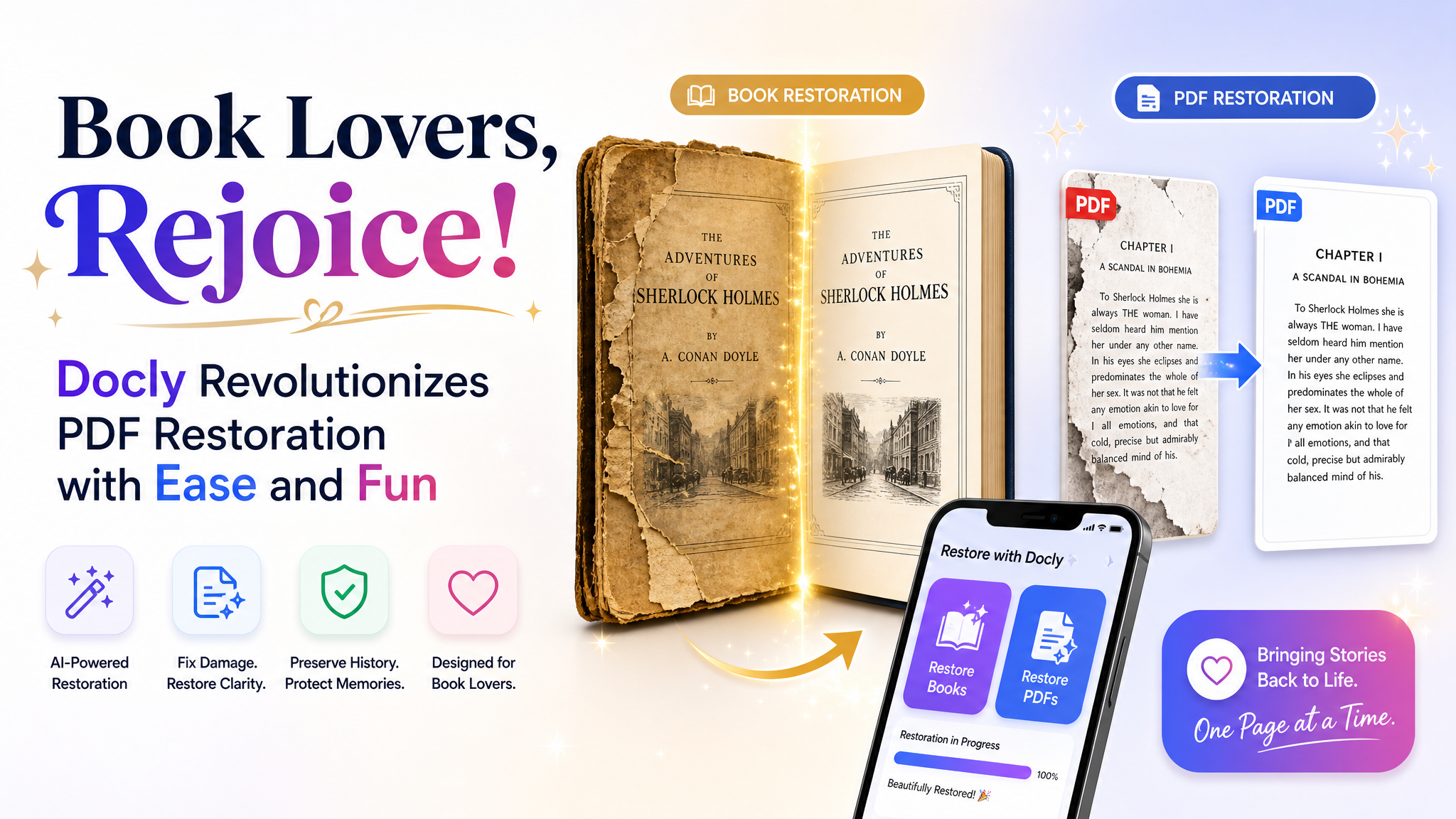
Where it stumbles and why that matters
No tool is magic. Docly works best on clean, single-column text with standard fonts. If you throw a 19th-century newspaper with six columns, tiny footnotes, and decorative drop caps, the AI gets confused. I tested a page from an 1890s journal. The text extraction was decent for the main column, but the sidebar notes ended up scattered in the middle of the document. For serious academic work where you need precise placement, this could be a problem.
Also, the restoration feature is not about making the scan look visually perfect. It’s about making the text usable. The image itself doesn’t become high-resolution or sharp. If you want a beautifully cleaned-up facsimile for printing, Docly isn’t that. It’s a text-first restoration tool. For most reading and note-taking, that’s enough. But if your goal is to re-publish a vintage edition, you’ll need a different solution.
Tradeoffs compared to dedicated OCR suites
Professional OCR tools like ABBYY FineReader offer more granular control over language settings, zone recognition, and output formats. Docly is simpler. You upload a file, wait a bit, and you get a restored PDF. That simplicity is a strength for casual users — book club members, genealogy researchers, self-taught readers. But power users may miss options like batch processing with custom profiles, or the ability to train the OCR on a specific font. Docly is a consumer-friendly tool, not a professional scanning station. That’s fine, as long as you know what you’re signing up for.
A practical test you can do right now
If you’re a book lover with a PDF that’s been sitting unread on your tablet because you can’t search it, pick one page — the most messy-looking one — and run it through Docly. Check if the text highlights correctly when you long-press. Try copying a paragraph into a note-taking app. If it works, the rest of the document will likely work too. If that test fails consistently, the file might be too degraded even for modern AI OCR. In that case, consider re-scanning at a higher DPI, or look for a different source.
Docly does what it promises: it turns uncooperative PDFs into files you can actually read and edit. For anyone who has a stack of old scans waiting to be read, that’s a small but real revolution.
Comments
Leave a Comment